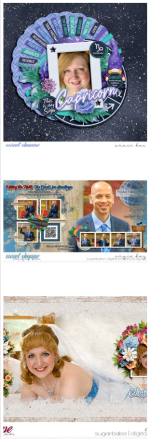
Mone, I've got a solution for you! It requires a couple extra steps on your part, but if it's important to you to see the full 2-page layout spread in your thumbnails, it's an option.
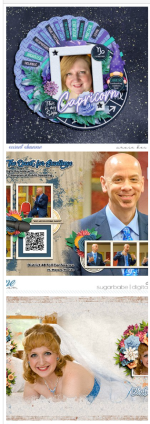
Here's how a 2-page layout I created shows up in my gallery:
View attachment 676227
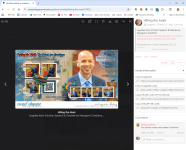
So I click on the layout, and it brings up the detail view:
View attachment 676228
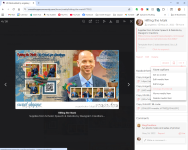
On the right side on the screen, you're looking for the row of buttons that begins with Watch. On the right end of that row, click on the drop-down button with the three dots, and the "More Options" pull-down menu appears. Click
Change thumbnail.
View attachment 676229
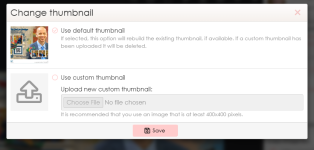
The system gives you two options: Use default thumbnail, or
Use custom thumbnail. Change it to custom, and then upload an image of your 2-page spread that's square with a white background at the top and bottom.*
View attachment 676230
Then click
Save.
When you back out to your gallery, your custom thumbnail now appears!
View attachment 676231
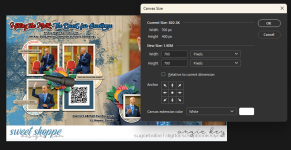
* I know it's an extra step to save your layout thumbnail... The quick and easy way to do this in Photoshop is - with the JPG of your 2-page spread that you've uploaded to the gallery open - navigate to
Image ... Canvas Size. Change the number in
Height to the same as the number in
Width. Make sure the
Anchor field is set to the center of the layout, and that
Canvas Extension Color is set to white.
View attachment 676232
Click
OK, and your newly-square 2-page layout will appear. Then just
Save for Web like you normally would.
View attachment 676233
I hope this information helps!




 I mean a page when you have all the comments on all your pages like we have before, see what I mean? I don't know if it's still exist?