


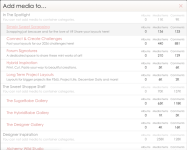
Uploading to the gallery is easy! From the gallery index page, just click the Add Media button in the upper right corner of the page and a window similar to this should appear...
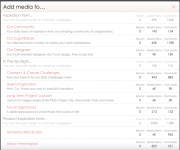
Choose ONE category to upload your photo to. I've reorganized our categories a little bit to clean them up a bit, so I would recommend choosing the Inspired by... Our Community category as a general catch-all for your gorgeous pages. You may prefer to use the Connect & Create challenge gallery if you're playing along there or if you CT for a designer, she may want you to add your page directly to her designer category.
Once you've chosen a category, the add photo icon will appear.
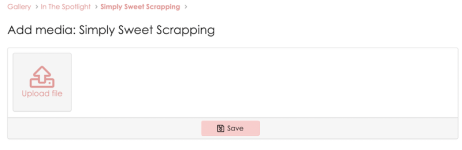
Navigate to the image on your computer and hit save and the media information screen will pop up like so...
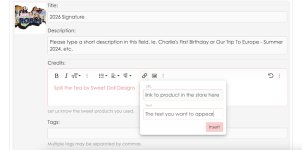
As you can see above, you can directly edit the title of your image so it appears how you want it to. If it uploads as img20917.jpg, you may want to change that field.
Please include a short description in the description box. It doesn't have to be anything lengthy, just a little blurb to let us know what we're seeing.
In the credits box, click the link icon in the tool bar. In the box that pops up, you can insert the link to the product in the shoppe along with what you want your link to say. This creates a nice, simply formatted clickable link in the credits field as can you see in my example above. If you want to keep it more simple "Such and such by so and so" in your credits box, that's ok too.
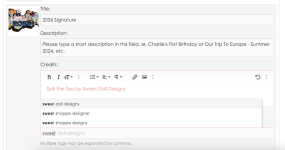
Finally, in the tags box, simply start typing a designer name and options should appear for you to use...
Like I explained in my recent community intro post, tags are going to be really important moving forward as they will be key to helping us categorize layouts by designer, so if you're looking for layouts featuring products from a specific designer or want to see all our SugarBabe layouts, you simply need to click the pertinent tag on any image and it will open up to all of the layouts tagged with that designer's tag. You can also search by tag in the gallery too. Tagging is quick and easy and the more of us who use them the better this feature will grow to be.
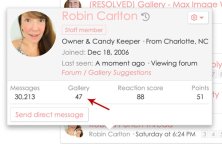
Between tags and the new simplified way that our Gallery handles user images, the category you choose isn't so important because all of your layouts (or anyone else's) can always be found by hovering over their username and clicking the number shown above "gallery" as seen below...
If everyone fills out these 4 fields when uploading a layout, our gallery will end up being the spiffiest thing around with all the info we need at our fingertips.
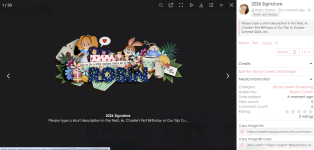
One last thing, once your layout is uploaded to the gallery, you can use the Copy Image Link / Copy Image BB code links to easily share your layouts here in the forums. Play around with the options to see which share view you prefer. They're pretty neat!
Let us know if you have any questions!
Robin
Choose ONE category to upload your photo to. I've reorganized our categories a little bit to clean them up a bit, so I would recommend choosing the Inspired by... Our Community category as a general catch-all for your gorgeous pages. You may prefer to use the Connect & Create challenge gallery if you're playing along there or if you CT for a designer, she may want you to add your page directly to her designer category.
Once you've chosen a category, the add photo icon will appear.
Navigate to the image on your computer and hit save and the media information screen will pop up like so...
As you can see above, you can directly edit the title of your image so it appears how you want it to. If it uploads as img20917.jpg, you may want to change that field.
Please include a short description in the description box. It doesn't have to be anything lengthy, just a little blurb to let us know what we're seeing.
In the credits box, click the link icon in the tool bar. In the box that pops up, you can insert the link to the product in the shoppe along with what you want your link to say. This creates a nice, simply formatted clickable link in the credits field as can you see in my example above. If you want to keep it more simple "Such and such by so and so" in your credits box, that's ok too.
Finally, in the tags box, simply start typing a designer name and options should appear for you to use...
Like I explained in my recent community intro post, tags are going to be really important moving forward as they will be key to helping us categorize layouts by designer, so if you're looking for layouts featuring products from a specific designer or want to see all our SugarBabe layouts, you simply need to click the pertinent tag on any image and it will open up to all of the layouts tagged with that designer's tag. You can also search by tag in the gallery too. Tagging is quick and easy and the more of us who use them the better this feature will grow to be.
Between tags and the new simplified way that our Gallery handles user images, the category you choose isn't so important because all of your layouts (or anyone else's) can always be found by hovering over their username and clicking the number shown above "gallery" as seen below...
If everyone fills out these 4 fields when uploading a layout, our gallery will end up being the spiffiest thing around with all the info we need at our fingertips.
One last thing, once your layout is uploaded to the gallery, you can use the Copy Image Link / Copy Image BB code links to easily share your layouts here in the forums. Play around with the options to see which share view you prefer. They're pretty neat!
Let us know if you have any questions!
Robin
Attachments
Last edited: