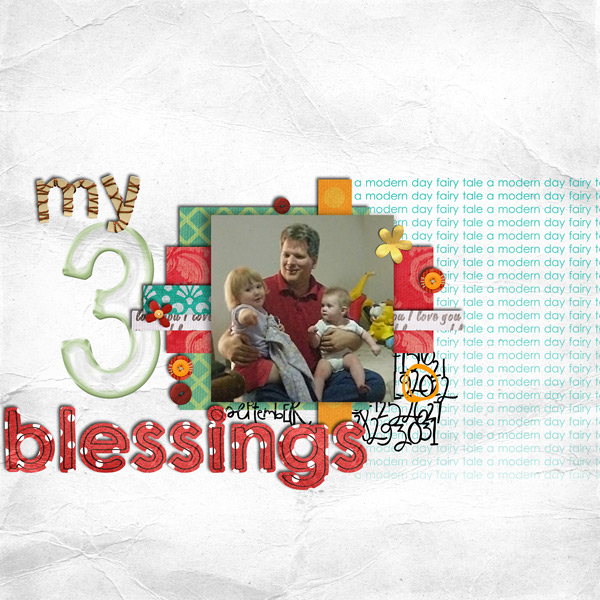
Sorry this took me so long, Jaedyn! Here are instructions for PSE (I used PSE 5, but it should work in 6 as well.)
Grab a background for your LO.

Type out your text and then simplify the layer (right-click on the layer and choose simplify).
PSE doesn't let you add a layer mask, but we can workaround this by adding an adjustment layer that DOES have a mask and having your simplifed text layer "share" the mask.
So the next step is to add the adjustment layer below your text layer. (A Levels adjustment layer will be fine.)
Now click on your text layer and group it with the levels layer beneath.
Now whatever you do to the layer mask will be applied to the grouped layer above. Pretty neat trick, huh? (I totally learned it from photoshopessentials.com -- can't take credit for it.)
So now it's time for the brush work. Make sure your foreground color is black and paint on the layer mask. (If you don't like how it looks, switch the foreground color to white and paint over it.)
You can use a large soft round brush around the edges to fade it -- adjust the opacity so it doesn't completely delete everything.
If you want to grunge it up and have the edges be "uneven" then you'll want to use a grunge brush. I used some from Colorburned that you can find here for free:
http://colorburned.com/2009/04/27_grungy_film_photoshop_brush.html
Adjust the opacity for different effects. (And remember, painting in black "erases" ... paint in white to "undo" what you did.)
Just play around with the brushes to get the effect you're looking for. HTH! You can catch me on YIM if you need help: suzyqscraps