Scrapbook questions?? Ask the Pink Ladies

I scrapbooked digitally a long time ago, probably 10 years ago in fact! I have forgotten most of what I have learned. I know its not as popular now as it was then but this was always one of my favorite shops so I thought I would ask my question here. Is there any place that still does like classes so I can have a refresher course? I only remember the bare minimum, like the super basic stuff. I feel like I need a good refresher class or something. Please help ;)

Welcome back to digi scrapping! :thumbup: I'm not sure which program you're using to scrap with, but there are tutorials for Photoshop CC and Photoshop Elements on this site (blog and tutorials sections -along the top menu bar), and also on many of the designer's blogs.

Here's a link to pink reptile designs blog's tutorial section.

Here's a link to the designer directory so you can check out the blogs and social media, etc.

If you run into any problems or have a question, just pop in and ask. Everyone is super friendly, and we'll do our best to help you. :)
 
Last edited:
Im overwhelmed

Im over whelmed with getting back into this. My photos are no longer organized like they used to be and my old scrapbook stash is all over the place. Should I just get rid of all my old kits and just start new? How would you do it if you were just getting back started after being gone so long? :confused:
 
Im over whelmed with getting back into this. My photos are no longer organized like they used to be and my old scrapbook stash is all over the place. Should I just get rid of all my old kits and just start new? How would you do it if you were just getting back started after being gone so long? :confused:

Don't get caught up in organizing and overwhelm yourself even more causing you to stop scrappin. Just start by picking some photos for a layout and buying a new kit. Make sure to unzip and organize the new purchases right away and scrap with them. It's always more fun to scrap with new stuff.

Then after you'd had some fun scrappin. Take some time to organize some of your most recent photos or kits. Set the timer for 15 minutes and call it good when it goes off. If you feel like going for another 15 minutes, do it.

Working backwards on organizing your photos and kits helps because you remember the most about those and once you get into a groove it's easier to keep going. But don't overdo it. Remember to take baby steps each day. Doing just 15 minutes at a time makes it manageable and won't burn you out on the no-fun organizing part.

I like to organize my photos in monthly folders inside a yearly folder. I organize my supplies by designer so each designer has a folder, and have another folder for all my templates. I don't tag supplies because I'm mostly a one kit/designer scrapper and know my stash well enough to find what I need. Your organization system will need to fit how you scrap. There's no wrong answer, just do what works best for you.

As far as your old stash of kits, don't delete yet. Give yourself time to get back into scrappin more to know what you want to keep and what you don't. I'd set the timer and go through a little at a time. Keeping stuff that you still love and moving or deleting stuff you don't. The beauty of digi scrappin is that your organizational mess is hidden on a hard drive, not out on the dining room table for everyone to see. :blink: Give yourself grace and enjoy being back in the hobby.

HTH
 
I made many digital scrapbook pages over the years, hundreds but it has been a few years now. I cannot remember how to "insert" a photo into a premade frame! What are the different ways. I am finding nothing on Google or YouTube now.

Also, why can I just create a clipping mask or command, option G on my Mac and the photo automatically inserts and sometimes it does not.

Thank you! I cannot believe that I have no idea and cannot remember how I always used to do it.
 
I made many digital scrapbook pages over the years, hundreds but it has been a few years now. I cannot remember how to "insert" a photo into a premade frame! What are the different ways. I am finding nothing on Google or YouTube now.

Also, why can I just create a clipping mask or command, option G on my Mac and the photo automatically inserts and sometimes it does not.

Thank you! I cannot believe that I have no idea and cannot remember how I always used to do it.

I'm guessing you're using photoshop or photoshop elements. You'll need to make a holding layer for your photo under the premade frame and then add your photo above that photo holding layer and clip it down with command option G.

You'll want to create a new layer or holding layer under the premade frame.

For this example, I'm using a premade frame from Anisoptera by pink reptile designs.


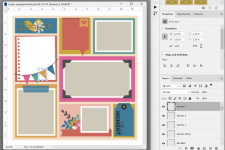
Use the rectangle marquee tool to select the area of the premade frame you want to fill with your photo. This will give you marching ants around your selection. I selected a little beyond the opening of the frame, so I wouldn't have any gaps between the frame and photo.
1dBmgNt.jpg


Then on the new layer that is under the premade frame, hit command backspace to fill that selection with the background color. This will make a template so to say, that you can use to clip your photo to.

Hit command D to deselect (get rid of marching ants).

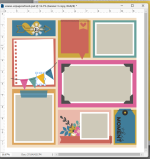
Add your photo to a layer under the premade frame but above the photo holding layer you just made. While on the photo layer, hit (command, option G) and adjust the photo size from a corner, so that it shows inside the premade frame.

CWMlG6m.jpg


HTH :thumbup:
 
Last edited:
Thank you!

I will do all of that. I really appreciate you explain all of that and with examples!
I wish I could remember how I used to do it. I am honestly at a loss that I cannot remember! I am shocked. I must be getting older!
I have about 60 layouts that I have frames with photos on!

Thank you so much again!
 
Don't get caught up in organizing and overwhelm yourself even more causing you to stop scrappin. Just start by picking some photos for a layout and buying a new kit. Make sure to unzip and organize the new purchases right away and scrap with them. It's always more fun to scrap with new stuff.

Then after you'd had some fun scrappin. Take some time to organize some of your most recent photos or kits. Set the timer for 15 minutes and call it good when it goes off. If you feel like going for another 15 minutes, do it.

Working backwards on organizing your photos and kits helps because you remember the most about those and once you get into a groove it's easier to keep going. But don't overdo it. Remember to take baby steps each day. Doing just 15 minutes at a time makes it manageable and won't burn you out on the no-fun organizing part.

I like to organize my photos in monthly folders inside a yearly folder. I organize my supplies by designer so each designer has a folder, and have another folder for all my templates. I don't tag supplies because I'm mostly a one kit/designer scrapper and know my stash well enough to find what I need. Your organization system will need to fit how you scrap. There's no wrong answer, just do what works best for you.

As far as your old stash of kits, don't delete yet. Give yourself time to get back into scrappin more to know what you want to keep and what you don't. I'd set the timer and go through a little at a time. Keeping stuff that you still love and moving or deleting stuff you don't. The beauty of digi scrappin is that your organizational mess is hidden on a hard drive, not out on the dining room table for everyone to see. :blink: Give yourself grace and enjoy being back in the hobby.

HTH

Your whole approach on the subject and your tips on organizing, are so helpful!! Thank you!! :)
 
I’m very new here and to digital scrapbooking but I?m loving it so far. I’m using an iPad Pro and the Procreate app.

Any tips, tutorials, suggestions or advice would be greatly appreciated.
 
Last edited:
Don't get caught up in organizing and overwhelm yourself even more causing you to stop scrappin. Just start by picking some photos for a layout and buying a new kit. Make sure to unzip and organize the new purchases right away and scrap with them. It's always more fun to scrap with new stuff.

Then after you'd had some fun scrappin. Take some time to organize some of your most recent photos or kits. Set the timer for 15 minutes and call it good when it goes off. If you feel like going for another 15 minutes, do it.

Working backwards on organizing your photos and kits helps because you remember the most about those and once you get into a groove it's easier to keep going. But don't overdo it. Remember to take baby steps each day. Doing just 15 minutes at a time makes it manageable and won't burn you out on the no-fun organizing part.

I like to organize my photos in monthly folders inside a yearly folder. I organize my supplies by designer so each designer has a folder, and have another folder for all my templates. I don't tag supplies because I'm mostly a one kit/designer scrapper and know my stash well enough to find what I need. Your organization system will need to fit how you scrap. There's no wrong answer, just do what works best for you.

As far as your old stash of kits, don't delete yet. Give yourself time to get back into scrappin more to know what you want to keep and what you don't. I'd set the timer and go through a little at a time. Keeping stuff that you still love and moving or deleting stuff you don't. The beauty of digi scrappin is that your organizational mess is hidden on a hard drive, not out on the dining room table for everyone to see. :blink: Give yourself grace and enjoy being back in the hobby.

HTH

Great advice. I am getting back into the fun hobby after years away due to health and computers no longer working.
 
Hello everyone. I'm Tanya (oscaralley) and I'm a hybrid girl. I currently use Silhouette Studio to create all my cards and hybrid projects.
I've been wanting to scrap for a while now, just don't know where to start. I love all the templates but not 100% how to use them.
I've been reading some of the tips of where to start and not get overwhelmed and it's been helpful. I do have PSE 15 (need to upgrade) and know how to use it enough to create a page. I guess what I'm looking for is some tutorials for beginners. I also really really want to learn how to do shadows. Hopefully you can follow what I'm trying to say (I talk in circles...SORRY)
Any tips would be great.
Thanks so much
Tanya
 
Hello everyone. I'm Tanya (oscaralley) and I'm a hybrid girl. I currently use Silhouette Studio to create all my cards and hybrid projects.
I've been wanting to scrap for a while now, just don't know where to start. I love all the templates but not 100% how to use them.
I've been reading some of the tips of where to start and not get overwhelmed and it's been helpful. I do have PSE 15 (need to upgrade) and know how to use it enough to create a page. I guess what I'm looking for is some tutorials for beginners. I also really really want to learn how to do shadows. Hopefully you can follow what I'm trying to say (I talk in circles...SORRY)
Any tips would be great.
Thanks so much
Tanya

Not sure how I missed this, but better late than never right! There's a ton of info here on the SSD site. Just click tutorials at the top and then the section you need. There's a getting started section and a shadowing section that may be helpful to you! (y)
 
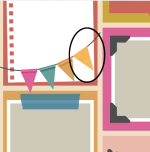
Template Question: See how I added the orange paper to the flag banner below? How can I make it look like the string is going through it like the template shows? THANK YOU SO MUCH.
1781023061432.png
 
Template Question: See how I added the orange paper to the flag banner below? How can I make it look like the string is going through it like the template shows? THANK YOU SO MUCH.
View attachment 686848

There are a couple ways you could go about it…

I don’t have the template in front of me but I’m assuming there is either a dimensional layer or a layer effect?

If it’s a dimensional layer I would use the lasso tool to select to shadowed area you want to recreate and copy / paste it onto a new layer then adjust it above your new flag.

If it’s a layer effect, you should be able to copy / paste the layer effect onto your new banner.

There are also ways to recreate the shadows yourself using burn/dodge and/or making layer styles but they’re a little more work.
 
I
Hi Karli, THANK YOU FOR YOUR QUICK REPLY.
I'm not seeing a dimensional or a layer effect.
View attachment 686849

Gotcha, I would try just duplicating the banner layer you have selected and moving it over to where you want it.

You can always recolor it if you don’t want the same color- let me know if you don’t know how to do this.

What happens if you clip a paper to the banner? Does it retain the shadowing? Or does it look flat.

Sorry I’m not in front of my computer now 🫠
 
Hi Karli, THANK YOU FOR YOUR QUICK REPLY.
I'm not seeing a dimensional or a layer effect.
View attachment 686849

Hi, Kim - let me ensure I understand what you're asking. You want to be able to clip paper to that triangular shape in the banner and have it maintain the shadow and highlight that makes it look dimensional, as if it's actually wrapped around the string. Is that correct?

If so, simply clipping a paper to that layer won't do the trick. That causes Photoshop to completely replace the entire shape with the paper, without respect to the dimensional effect.

It appears that Erica used the burn & dodge tools to highlight and shadow that layer rather than using a layer style. There's a couple ways you can get that effect:

1. Purchase a style pack for Photoshop Elements that includes that effect. This is the easiest option, especially if this is an effect you plan to use regularly. You'd have to go to another store - probably a Photoshop-specific shop - to find one.

2. Use the dodge and burn tools to manually add a highlight and a shadow. I'm not 100% sure these are available in Photoshop Elements - I'll have to do a little research.

But the way I like to replicate those kind of effects is

3. After you clip your paper to the layer, duplicate that original layer and drag the copy above your paper. Then use layer blending styles to have it apply the dark and light shading to your new paper.

I'll be back in a few minutes with some screen shots and step-by-step instructions!

ETA: It looks like you're actually using the full-blown version of Photoshop, not elements - so that'll help with my step-by-step instructions!
 
Angie:
I did your instructions #3. After you clip your paper to the layer, duplicate that original layer and drag the copy above your paper. Then use layer blending styles to have it apply the dark and light shading to your new paper.
(The color burn and soft light blending style worked the best.)
I would have NEVER KNOWN TO DO THIS - SO THANK YOU VERY MUCH.

Karli, thank you to you also for your help. I really appreciate you both helping me through this. I learned something new and I'm very happy.
1781030844931.png
 
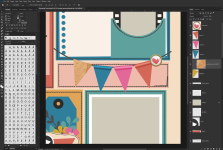
Okay, @Kim Hansen - here's the step-by-step process. I'm using a different template by Erica, but it has a similar banner in it so the steps are the same.

01-template.jpg

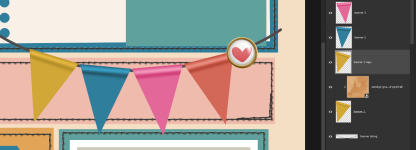
1. Clip your paper to the banner1 layer.

Screenshot 2026-06-09 134409.png

Now you see the triangular shape in your preferred paper, but it's flat and doesn't have the dimensional effects.

2. Duplicate the banner1 layer and drag it above your patterned paper.

Screenshot 2026-06-09 134428.png

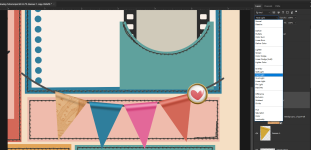
3. With the top banner1 layer selected, go to Image ... Adjustment ... Hue & Saturation. Set the Saturation value to -100 it so it turns completely greyscale.

4. Now, set the Layer Blending Mode for the grey banner1 layer shape to Hard Light.


Screenshot 2026-06-09 134727.png

Notice that it added the highlight and shadow to the paper to make it look more dimensional. But that's not enough for me...

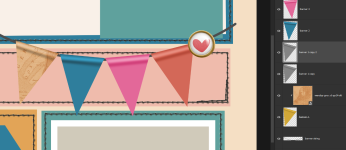
5. If you want a stronger effect, duplicate the grey banner shape layer with the same Hard Light blending mode.

Screenshot 2026-06-09 134815.png

Much better!

That's all it takes! We convert that layer to greyscale to completely remove the color cast so when you blend it, your paper's colors stay the same - only the brightness and darkness of the contouring changes.

Hope that helps!
 
Angie:
I did your instructions #3. After you clip your paper to the layer, duplicate that original layer and drag the copy above your paper. Then use layer blending styles to have it apply the dark and light shading to your new paper.
(The color burn and soft light blending style worked the best.)
I would have NEVER KNOWN TO DO THIS - SO THANK YOU VERY MUCH.

Karli, thank you to you also for your help. I really appreciate you both helping me through this. I learned something new and I'm very happy.
View attachment 686850
Yay! I'm so glad it worked for you!

It's always a good idea to try several different blend modes until you find the one you're happiest with. I think it can depend a lot on the patterned paper you're trying to apply the blend to - what color it is, its brightness and contrast levels, etc - and I don't know enough about the blend modes to hit on the right one every time. Thankfully it's pretty easy to cycle through them for a little trial-and-error.
 
Back
Top